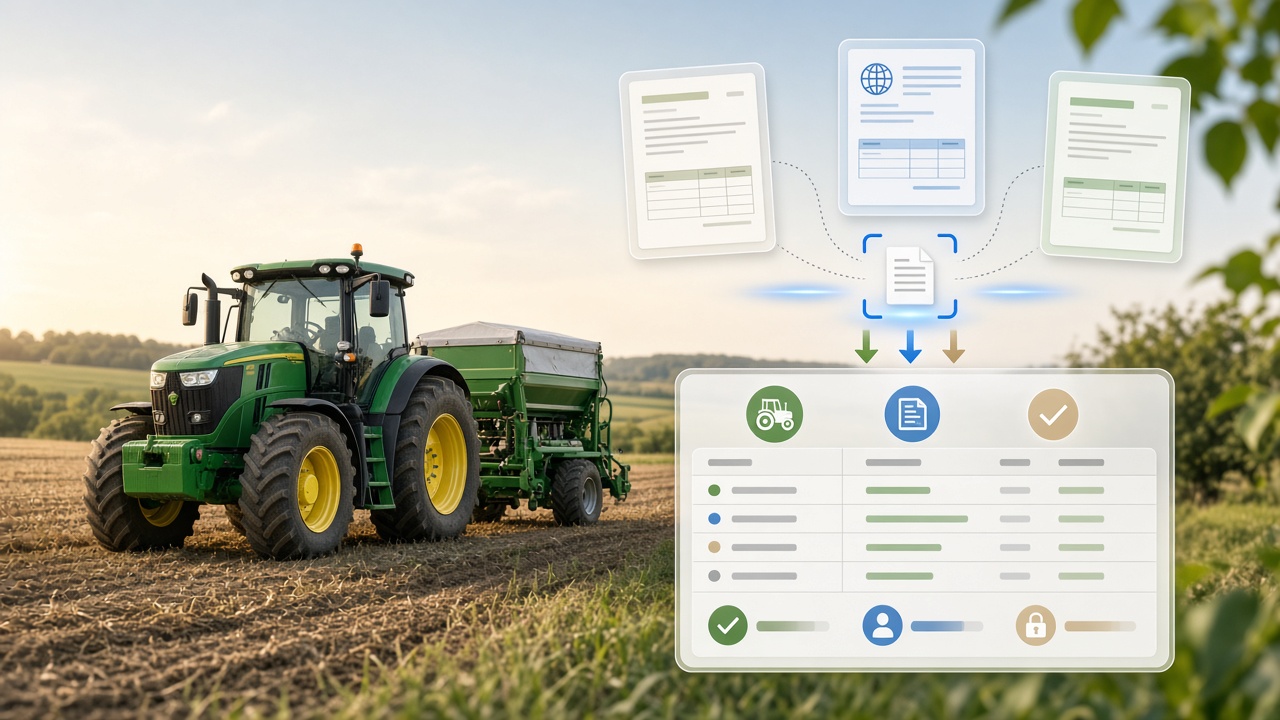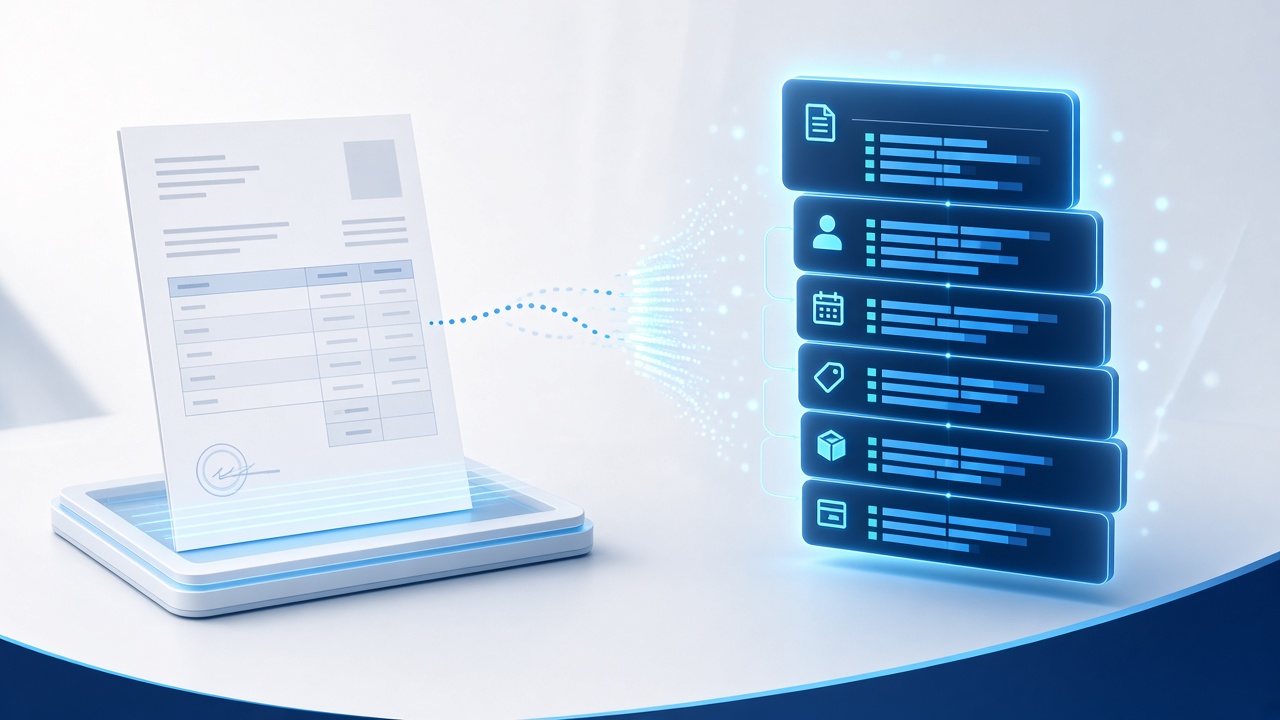
Invoices contain valuable data, but much of it arrives in PDFs, scans, and photos that business systems cannot use directly. Optical character recognition (OCR) solves the first part of the problem by reading text. Document data extraction goes further: it organizes that text into fields and rows that software can process.
With ConvertToData, an invoice can be transformed into JSON, XML, CSV, or XLSX. JSON is often the best choice for application integrations because it preserves structure and can be consumed directly by most programming languages and automation platforms.
What invoice data can be extracted?
The exact result depends on the source document, but a useful invoice dataset commonly includes:
- supplier and customer names;
- invoice number and issue date;
- currency, subtotal, tax, and total;
- purchase order or contract references;
- line-item descriptions, quantities, prices, and amounts.
Unlike plain OCR text, structured output keeps related values together. A line-item table, for example, remains an array of rows instead of becoming an unstructured block of words.
Step 1: Prepare the source document
Good input improves extraction quality. Use the original digital PDF whenever possible. For scanned pages, keep the document straight, include the full page, and avoid shadows or reflections. Text should remain readable when the page is viewed at its normal size.
If an invoice contains several pages, keep them in the correct order. Do not crop away headers, totals, or page numbers: those areas often provide context needed to interpret the document correctly.
Step 2: Convert the invoice on the website
- Open the ConvertToData converter.
- Upload the invoice file.
- Select the recognition language used in the document.
- Choose JSON as the output format.
- Start the conversion and download the result.
CSV or XLSX may be more convenient for a one-time spreadsheet task. JSON is preferable when the result will be sent to an accounting platform, ERP, database, or custom application.
Step 3: Automate conversion through the API
For recurring workloads, use the ConvertToData API instead of uploading every document manually. The conversion endpoint accepts a POST request containing your API key, the input file, and the desired output format. Your personal API key is available in the developer area after authorization.
curl -X POST "https://converttodata.com/converttodata/hs/api/v1/convert" \
  -H "Content-Type: application/json" \
  -d '{
    "ApiKey": "_YOUR_API_KEY_",
    "InputFile": "https://example.com/invoice.pdf",
    "OutputFileFormat": "json"
  }'
Keep API keys outside source code and public repositories. Use an environment variable or a secrets manager, and send requests only over HTTPS. See the API documentation for current parameters and response fields.
Step 4: Validate before posting data
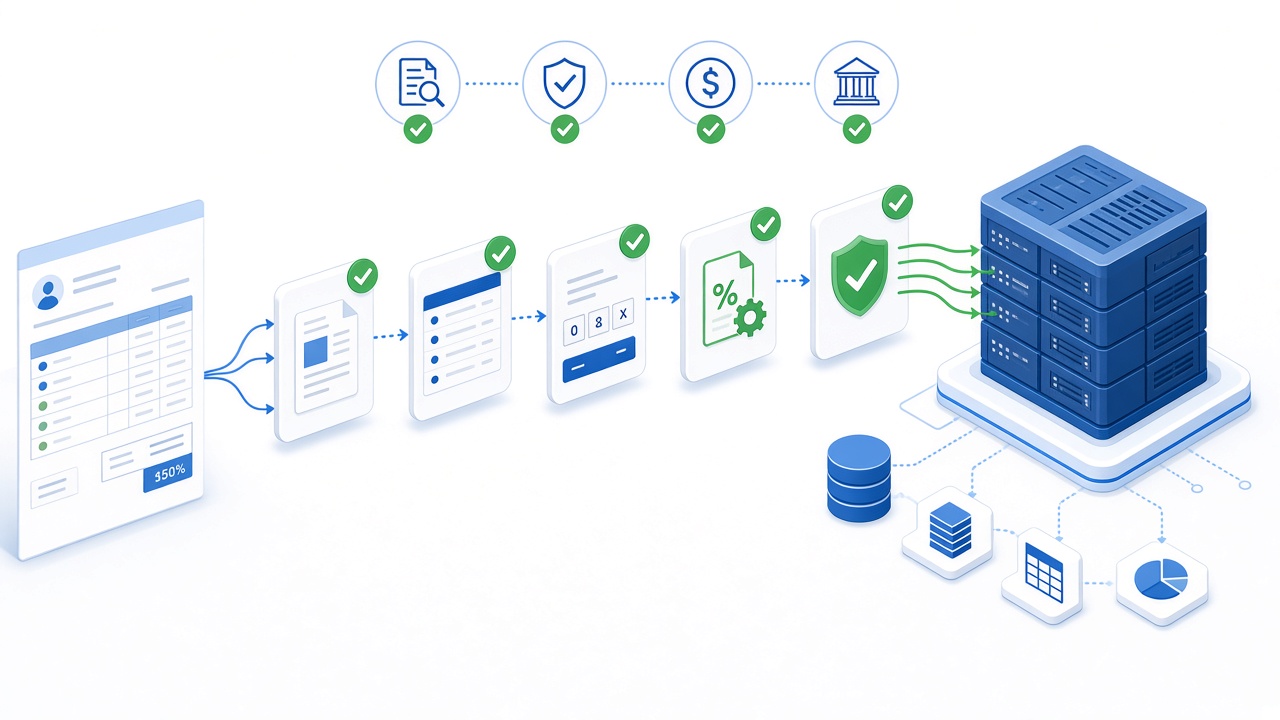
OCR output should be treated as input that requires validation, especially when it affects payments or financial records. Useful checks include:
- the sum of line items matches the subtotal;
- subtotal plus tax matches the total;
- dates use the expected format and range;
- currency codes and decimal separators are normalized;
- invoice numbers are not duplicates;
- supplier identifiers match an approved vendor record.
When a check fails, route the document for human review rather than silently accepting uncertain data. This gives automation the speed of OCR while keeping financial controls in place.
Step 5: Map the result to your system
Create an explicit mapping between extracted fields and the destination schema. For example, an extracted supplier name may map to a vendor ID, while each recognized row maps to an invoice-line record. Store the original file or a traceable reference according to your retention policy so that an operator can verify the source later.
A repeatable invoice workflow
A reliable production flow is simple: receive the invoice, convert it, validate the result, send valid records to the destination system, and queue exceptions for review. Start with a representative sample of invoices from different suppliers before expanding the automation.
Ready to test the workflow? Convert a sample document on the ConvertToData home page, or review the developer tools for API-based integration.